Text overlay
Add text anywhere on your video
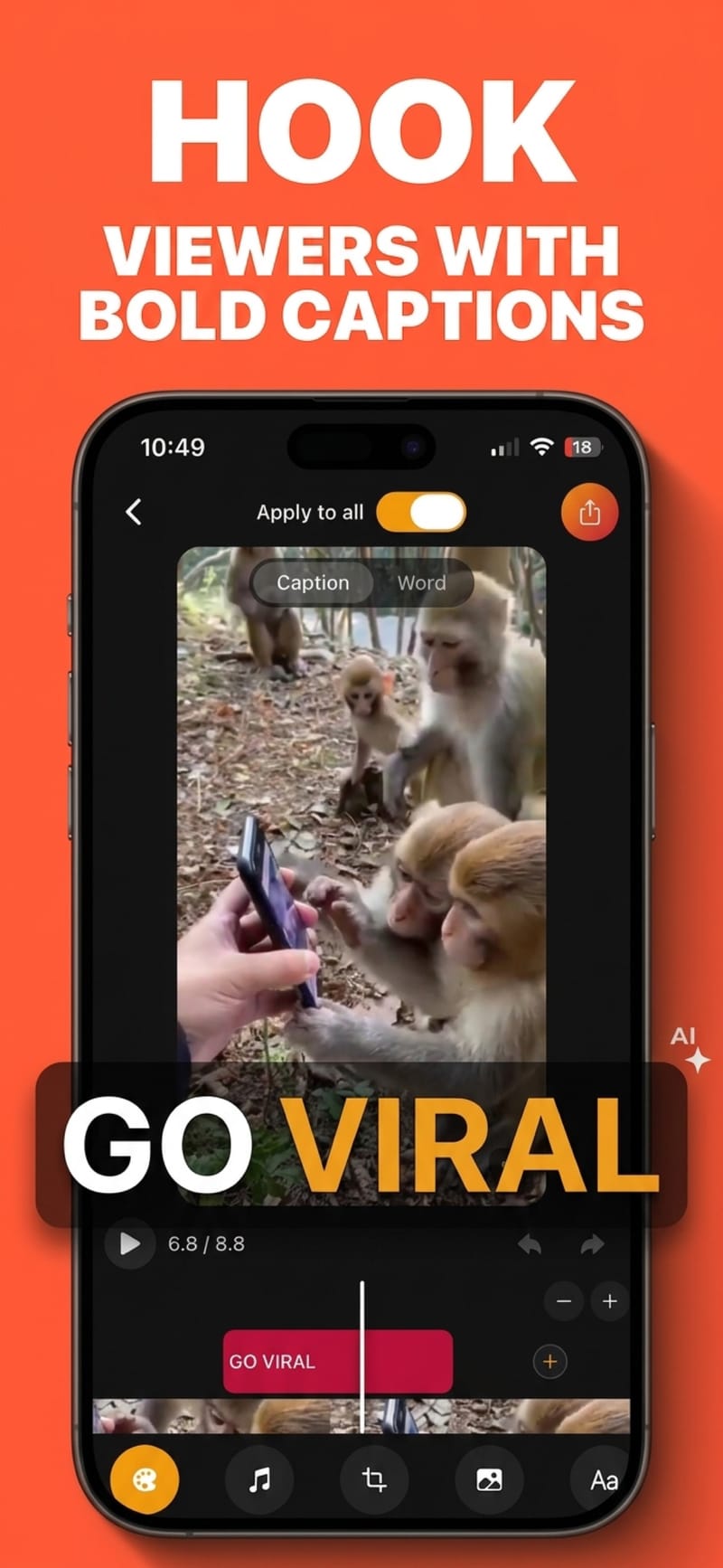
Separate from your captions, text overlays are free-standing blocks you place yourself — a hook across the opening seconds, a label pointing at something on screen, a name badge, a call to action at the end.
How it works
- 1
Add a text layer
Tap to drop one onto the video, then type. It starts centred and you move it from there.
- 2
Place and style it
Drag to position, pinch to size, rotate to any angle, then set the font, colour and shadow.
- 3
Set when it appears
Each overlay has its own lane on the timeline, so you drag its start and end to the moment you want.
Not the same thing as captions
Captions are generated from speech and track it word by word. A text overlay is something you wrote, that appears when you say it should. Most videos want both — captions carrying the dialogue, and one or two overlays doing the hook and the sign-off.
Timed to the second, per layer
Every overlay gets its own timeline lane with its own in and out point. A hook can hold for the first three seconds, a label can appear only while you are pointing at something, and a call to action can arrive at the end — with none of them colliding.
Positioned freely, not snapped to a bar
Position is stored as a fraction of the frame with independent rotation, so text can sit at an angle in a corner, run up the side, or hang exactly over the thing it is labelling. Sizes scale with the export, so what you place is what renders.
The same 20 fonts as your captions
Overlays draw on the same bundled font set as captions, with a drop shadow you can tune for legibility over busy footage. Keeping both to one typeface is usually what makes a video look deliberate rather than assembled.
Questions
What is the difference between a text overlay and a caption?
Captions are transcribed from what you say and timed to the speech automatically. A text overlay is text you type and place yourself, visible for a stretch of the timeline you choose. They are independent, and you can use both on the same video.
Can I have more than one text overlay?
Yes. Each gets its own lane on the timeline with its own start and end, so several can appear at different points, or overlap deliberately.
Can I rotate text?
Yes, to any angle. Position, size and rotation are all set by dragging on the video itself rather than typed into fields.
Will the text look the same in the export?
Yes. Position and size are stored relative to the frame and rendered against the export canvas, so the preview matches the exported file.
Is it free?
Yes. Text overlays are available on the free tier, and no export carries a watermark.
Try it on your next video
Free to start, and no watermark on any export.